
Dropped Your Phone in Water? Do These 5 Things in the Next 10 Minutes

Phone dropped in water - what to do immediately Singapore
Water Damage Guide · 5 min read · Updated April 2026

Dropped Your Phone in Water? Do These 5 Things in the Next 10 Minutes

The moment your phone hits water, every second counts. What you do in the next few minutes determines whether your phone survives or not. Here’s exactly what to do — and what not to do.

The First 5 Things to Do Immediately

1
Get it out of the water immediately

Every additional second submerged increases water ingress. Grab it now.

2
Power it off immediately

If the phone is still on, turn it off right now. Water and live electricity cause short circuits that permanently damage the logic board. Do not wait to “check if it still works” — turn it off first.

3
Remove the SIM card and any case

Open the SIM tray and remove the card. Take off any case. These trap moisture against the phone body and slow drying.

4
Dry the outside thoroughly

Use a clean dry cloth or tissue. Gently pat the screen, ports and edges dry. Do not rub — this can push water further into ports.

5
Bring it to a repair shop — don’t wait overnight

The first few hours are critical. Corrosion on the logic board starts within hours of water exposure. Professional cleaning with isopropyl alcohol removes water and inhibits corrosion far more effectively than drying at home.

Do NOT do these

Don’t charge it — water in the charging port plus electricity causes immediate short circuit damage.
Don’t put it in rice — rice is a myth. It does not absorb water from inside the phone. It wastes time while corrosion progresses.
Don’t use a hair dryer — heat can damage internal components and push water further inside.
Don’t press buttons repeatedly — this pumps water further into the phone.

Does My Phone’s IP Rating Protect It?

IP67 and IP68 ratings mean the phone has been tested for water resistance under controlled conditions — typically fresh water at a specific depth for 30 minutes. In real-world conditions, this protection is less reliable than it sounds.

IP ratings do not cover: salt water (beach, ocean), chlorinated water (pool), soapy water (sink), drops under pressure (shower), or phones with worn seals from being dropped or repaired.

An IP68 phone dropped in a swimming pool or the sea is at real risk of water damage despite its rating. IP ratings also degrade over time — a 2-year-old IP68 phone has significantly less water resistance than when it was new.

Singapore-specific risk

Heavy rain during Singapore’s monsoon season catches many people off guard. Pockets, bags and even “water-resistant” cases are not reliably waterproof in a sudden downpour. Treat your phone as unprotected in heavy rain regardless of IP rating.

What Happens Inside a Water-Damaged Phone

Water itself doesn’t always destroy a phone immediately. The real damage comes from what happens next:

Short circuits occur when water bridges connections on the logic board while the phone is powered on. This can permanently damage chips that are impossible to repair.

Corrosion begins within hours as minerals in the water react with metal contacts on the board. Tap water, sea water and pool water all contain minerals that accelerate corrosion. Even after the phone dries out, corrosion continues spreading under components.

Delayed failure is very common. A phone may seem fine after getting wet, then fail completely days or weeks later as corrosion progresses invisibly. This is why professional cleaning immediately after water exposure is so important — even if the phone appears to be working.

What Professional Water Damage Treatment Involves

At our workshop, water damage treatment involves disassembly, ultrasonic cleaning of the logic board with isopropyl alcohol, inspection under magnification for corrosion, and reassembly with testing. This process removes the minerals and residue that cause delayed corrosion failure.

The success rate depends heavily on how quickly you bring the phone in and what type of water it was exposed to. Fresh water treated within a few hours has a high success rate. Salt water or pool water treated the same day is more challenging. Any phone left overnight without treatment has a significantly lower chance of full recovery.

Common Questions

My phone still works after getting wet. Do I still need to bring it in?

Yes — strongly recommended. Corrosion progresses invisibly inside the phone. Many phones that “seem fine” fail completely within 1 to 4 weeks of water exposure due to advancing corrosion. Professional cleaning immediately after exposure prevents this.

I dropped my phone in the toilet. Is it salvageable?

Often yes, if treated quickly. Toilet water is generally not salt water or chlorinated, so the corrosion risk is similar to tap water. Power it off immediately, do not charge it, and bring it in as soon as possible.

My phone dropped in the sea / pool. Is it salvageable?

Harder but possible if treated within hours. Salt water and chlorinated water are significantly more corrosive than fresh water. These cases require immediate professional treatment — do not leave it overnight.

How long does water damage repair take?

Initial assessment is done same day. Full cleaning and repair typically takes 2 to 4 hours depending on severity. We’ll give you a timeline after diagnosis.

Water damage? Come in now

Time is critical — the sooner you bring it in, the better the outcome.
Westgate · AMK Hub · Bugis Village · Parkway Parade · 11am–9pm daily

💬 WhatsApp +65 9678 0203

Why Is My Phone Battery Draining So Fast? 6 Causes and When to Replace It

Phone battery draining fast - when to replace battery Singapore
Battery Guide · 5 min read · Updated April 2026

Why Is My Phone Battery Draining So Fast? 6 Causes and When to Replace It

Your phone used to last all day. Now it barely gets through lunch. Here’s exactly why phone batteries drain faster over time — and a clear test to tell whether yours needs replacing.

How Phone Batteries Degrade

All phone batteries are lithium-ion. Every charge cycle — from low to full — permanently reduces the battery’s maximum capacity by a tiny amount. After 300 to 500 cycles (roughly 1 to 2 years of daily charging), most batteries are at 80% of their original capacity or below.

At 80% capacity, a phone that originally lasted 12 hours now lasts around 9 to 10 hours. At 70%, you’re looking at 8 hours. The degradation accelerates as the battery ages further.

Check your battery health right now

iPhone: Settings → Battery → Battery Health & Charging. Below 80% — replace it.
Android: Dial *#*#4636#*#* → Battery Information. Or use the AccuBattery app for a detailed health reading.

6 Reasons Your Battery Drains Fast

1. Natural degradation

The most common cause. Every battery has a finite lifespan. If your phone is more than 18 months old and draining noticeably faster, degradation is the most likely cause.

2. Screen brightness too high

The display is the single biggest battery drain on any phone. Auto-brightness helps, but many people override it and run at maximum brightness all day — especially in Singapore’s bright outdoor conditions.

3. Background app refresh

Apps running in the background constantly checking for updates, messages and location data drain battery silently. Check which apps are using the most background battery and restrict the ones you don’t need.

4. Poor signal areas

When your phone is in a weak signal area — basement carparks, certain MRT stations, older buildings — it constantly boosts its radio power trying to maintain a connection. This drains battery 2 to 3 times faster than normal.

5. Extreme temperatures

Singapore’s heat accelerates battery degradation over time and reduces capacity temporarily in the short term. Leaving your phone in direct sunlight or a hot car regularly will age the battery significantly faster.

6. Swollen battery

A swollen battery has undergone a chemical reaction that causes it to physically expand. Capacity drops sharply and the phone may shut off randomly. This is a safety issue — a swollen battery needs immediate replacement.

Signs of a swollen battery

Screen or back panel lifting slightly from the frame. Phone feels thicker than usual. Battery percentage jumps erratically. Immediate replacement required — do not charge a swollen battery overnight.

When Should You Replace the Battery?

  • iPhone battery health is below 80%
  • Phone doesn’t last through a full working day on a single charge
  • Battery percentage drops suddenly — e.g. from 30% to 5% with no warning
  • Phone shuts off before reaching 0%
  • Phone gets unusually warm during normal use or charging
  • Any sign of physical swelling

Tips to Make Your Battery Last Longer

Keep charge between 20% and 80%. Lithium-ion batteries degrade faster when regularly charged to 100% or run down to 0%. Most phones now have an optimised charging setting that slows charging above 80% overnight — turn it on.

Avoid wireless charging for daily use. Wireless charging generates more heat than wired, which accelerates battery degradation over time. Use wired charging for daily top-ups and wireless occasionally.

Use Low Power Mode proactively. On iPhone, Low Power Mode reduces background activity significantly. Turning it on at 50% instead of waiting for the 20% warning extends your daily battery life noticeably.

Turn off Always-On Display. On Samsung and other Android phones with always-on displays, this feature alone can account for 10 to 15% of daily battery drain.

Common Questions

How long should a phone battery last before needing replacement?

On average, 18 to 24 months of daily use before noticeable degradation. Heavy users who charge twice daily may see it sooner. Light users who charge once every two days may get 3 years or more.

Will replacing the battery make my phone feel like new?

If battery degradation is the main issue, yes — significantly. A new battery restores full capacity and eliminates unexpected shutdowns and percentage jumps. Combined with a software update, many customers tell us their phone feels noticeably faster after a battery replacement.

Is it worth replacing the battery on an older phone?

Generally yes, if the rest of the phone works well. A battery replacement is far cheaper than a new phone and extends the useful life of your device by 1 to 2 years. The calculation changes if your phone is very old and slow due to an outdated processor.

How long does a battery replacement take?

30 to 45 minutes at any of our 4 outlets. Walk in — no appointment needed.

Get your battery replaced today

30–45 minutes. Grade A battery. 60-day warranty.
Westgate · AMK Hub · Bugis Village · Parkway Parade · 11am–9pm daily
💬 WhatsApp +65 9678 0203

Cracked Screen vs Broken LCD — What’s the Difference and Which Do You Have?

Cracked phone screen - glass vs LCD display damage Singapore
.cprs-blog-wrap{font-family:-apple-system,BlinkMacSystemFont,’Segoe UI’,Helvetica,Arial,sans-serif;color:#1a1a1a;max-width:1100px;margin:0 auto;padding:0 16px} .cprs-blog-wrap *{box-sizing:border-box} .cprs-blog-header{border-left:4px solid #da291c;padding:24px 0 24px 24px;margin-bottom:40px} .cprs-blog-header .cprs-meta{font-family:’Courier New’,monospace;font-size:11px;letter-spacing:2px;text-transform:uppercase;color:#da291c;margin-bottom:10px} .cprs-blog-header h1{font-size:clamp(24px,4vw,36px);font-weight:700;line-height:1.2;margin:0 0 12px;color:#111} .cprs-blog-header .cprs-intro{font-size:17px;color:#555;line-height:1.8;margin:0;font-style:italic} .cprs-blog-layout{display:grid;grid-template-columns:1fr 240px;gap:48px;align-items:start} @media(max-width:860px){.cprs-blog-layout{grid-template-columns:1fr}.cprs-toc-sidebar{display:none}} .cprs-article h2{font-size:22px;font-weight:700;color:#111;margin:40px 0 14px;padding-bottom:8px;border-bottom:2px solid #f0f0f0} .cprs-article h3{font-size:17px;font-weight:700;color:#111;margin:24px 0 10px} .cprs-article h2:first-child{margin-top:0} .cprs-article p{font-size:16px;line-height:1.8;color:#333;margin:0 0 16px} .cprs-article ul,.cprs-article ol{padding-left:22px;margin:0 0 16px} .cprs-article li{font-size:16px;line-height:1.8;color:#333;margin-bottom:6px} .cprs-article strong{color:#111;font-weight:600} .cprs-tip{background:#f0f7ff;border-left:4px solid #2563eb;border-radius:0 8px 8px 0;padding:16px 20px;margin:24px 0} .cprs-tip .cprs-tip-label{font-family:’Courier New’,monospace;font-size:10px;letter-spacing:2px;text-transform:uppercase;color:#2563eb;font-weight:700;margin-bottom:6px} .cprs-tip p{margin:0;font-size:14px;color:#1e3a6e;line-height:1.6} .cprs-warn{background:#fff7ed;border-left:4px solid #f97316;border-radius:0 8px 8px 0;padding:16px 20px;margin:24px 0} .cprs-warn .cprs-warn-label{font-family:’Courier New’,monospace;font-size:10px;letter-spacing:2px;text-transform:uppercase;color:#c2410c;font-weight:700;margin-bottom:6px} .cprs-warn p{margin:0;font-size:14px;color:#7c2d12;line-height:1.6} .cprs-steps{margin:20px 0 24px} .cprs-step{display:flex;gap:16px;margin-bottom:16px;align-items:flex-start} .cprs-step-num{flex-shrink:0;width:32px;height:32px;background:#da291c;color:#fff;border-radius:50%;display:flex;align-items:center;justify-content:center;font-weight:700;font-size:14px;margin-top:2px} .cprs-step-body strong{display:block;font-size:15px;color:#111;margin-bottom:4px} .cprs-step-body p{margin:0;font-size:14px;color:#555;line-height:1.6} .cprs-checklist{list-style:none;padding:0;margin:16px 0 24px} .cprs-checklist li{display:flex;align-items:flex-start;gap:10px;font-size:15px;color:#333;margin-bottom:10px;line-height:1.6;padding-left:0} .cprs-checklist li::before{content:’✓’;flex-shrink:0;width:20px;height:20px;background:#da291c;color:#fff;border-radius:4px;display:flex;align-items:center;justify-content:center;font-size:11px;font-weight:700;margin-top:2px} .cprs-toc-sidebar{position:sticky;top:24px} .cprs-toc{background:#fafafa;border:1px solid #e5e7eb;border-radius:10px;padding:20px} .cprs-toc-title{font-family:’Courier New’,monospace;font-size:10px;letter-spacing:2px;text-transform:uppercase;color:#9ca3af;font-weight:700;margin:0 0 14px} .cprs-toc-list{list-style:none;padding:0;margin:0} .cprs-toc-list li{margin-bottom:2px} .cprs-toc-list a{display:block;font-size:13px;color:#6b7280;text-decoration:none;padding:6px 10px;border-radius:6px;border-left:2px solid transparent;line-height:1.4;transition:all 0.15s ease} .cprs-toc-list a:hover,.cprs-toc-list a.cprs-toc-active{color:#da291c;background:#fff5f5;border-left-color:#da291c;font-weight:600} .cprs-cta{background:#111;color:#fff;border-radius:12px;padding:32px;margin-top:48px;display:flex;justify-content:space-between;align-items:center;gap:24px;flex-wrap:wrap} .cprs-cta h3{margin:0 0 6px;font-size:20px;color:#fff} .cprs-cta p{margin:0;font-size:14px;color:#9ca3af;line-height:1.5} .cprs-cta a{flex-shrink:0;background:#25d366;color:#000;text-decoration:none;font-weight:700;font-size:14px;padding:12px 24px;border-radius:50px;white-space:nowrap}
Phone Repair Guide · 6 min read · Updated November 2026

Cracked Screen vs Broken LCD — What’s the Difference and Which Do You Have?

So you’ve dropped your phone, or otherwise scratched or cracked the front. How bad is the damage to the actual display, if at all? This will greatly affect the cost to repair, so it’s worth knowing.

Your Screen Has Two Layers

There are 2 separate layers over the top of your phone.

The outer glass (digitiser) — This is simply toughened glass. Cracks can range from small nicks to extensive webbing across the whole screen. In most cases there will be no effect on the operation of your phone.

The display panel (LCD or AMOLED) — This generates the picture that you look at. Symptoms of damage include black marks or areas, green, purple or other discolouration, lines, or a totally blank screen.

As you can imagine, knowing whether this or the protective glass has been damaged will greatly affect your quote.

Signs It’s Just the Outer Glass

  • Spider web cracks visible but the screen still shows a clear image
  • Touch still works normally across the whole screen
  • No black patches, colour bleed or lines on the display
  • Crack is localised to one corner or edge
  • Everything functions normally — just looks bad
The test

With the brightness set to maximum, view the phone in as dark an area as possible. Assuming there are no obvious areas of discolouration and that the overall picture is even, you most probably only have cracked glass.

Signs the Display Is Broken

  • Black patch or ink bleed spreading from the crack
  • Coloured horizontal or vertical lines across the screen
  • Half the screen is dark or completely black
  • Display shows strange colours or flickering
  • Touch is unresponsive in certain areas
  • Screen goes black but phone still vibrates and receives calls
Don’t wait

Any area of ‘ink’ or blackness emanating away from cracks and nicks indicates a degree of display failure. Continued pressure over these areas, simply by normal use of the phone, will likely cause greater areas to fail. So it’s best to have this repaired as soon as practicable.

Does It Matter Whether You Have LCD or AMOLED?

Of course, there are differences depending on type of display.

LCD screens — As these require a constant backlight shining through them, damage will often show as areas of white or other colours, although the whole backlight area may be affected.

AMOLED screens — All areas of the picture are generated by separate pixels. So if these are damaged, they will usually cease to light up at all, resulting in areas of solid black usually spreading away from the point of impact.

Can You Repair Just the Glass Without Replacing the Display?

Many handsets previously allowed a glass replacement, which was considerably less expensive than replacing the whole display. However, all recent handsets (generally 2019 and later) will have a laminated glass and display, so any damage to the top glass will require a new display.

Therefore, if quoted with an unusually cheap price for ‘just the glass’, it would be prudent to ask what replacement part they propose using. Many such replacements will be a non-laminated assembly, leading to a slight air gap, inferior picture quality and colour, as well as slower response times.

What we do

All our replacements will be a fully laminated unit, Grade A quality, so identical picture, touch response and maximum brightness. There will be no air gap.

What Should You Do Now?

1
Apply a screen protector or tape over the crack

This is desirable both to avoid laceration, and to prevent further ingress of foreign objects and liquid.

2
Back up your data immediately

Of course, if there are signs of failure, you run the risk of losing all picture. You should ensure an up-to-date backup to iCloud or Google, or via USB lead.

3
Bring it in for a free assessment

Obviously we would assess both the glass and the display itself, and advise accordingly, quoting a fixed price.

Common Questions

My screen is cracked but everything works fine. Do I still need to repair it?

There’s no rush, assuming it is only the outer glass cracked. However, it leaves the display very susceptible to any subsequent knocks, which are far more likely to result in total failure. You may be looking at anywhere from $80 to $200+ to repair, depending on whether the display is affected.

The crack is tiny. Will it spread?

They can, and will often continue to grow, with temperature variations as well as general everyday usage. It’s quite common for a nicked corner to progress to the entire screen.

Can I use my phone with a cracked screen?

You can continue using it, although obviously at risk of cuts. You also allow dirt and moisture in, which could result in further damage to the display or other internal components. And if the touch function is compromised in any way, it may become very difficult and inconvenient.

How long does a screen repair take?

60 to 90 minutes for most models. Walk in to any of our 4 outlets — no appointment needed.

Free screen assessment

Walk in to any outlet — we’ll check your screen and confirm exactly what needs replacing before any work starts.
Westgate · AMK Hub · Bugis Village · Parkway Parade · 11am–9pm daily

💬 WhatsApp +65 9678 0203
(function(){var links=document.querySelectorAll(‘.cprs-toc-list a’),headings=[];links.forEach(function(a){var id=a.getAttribute(‘href’).replace(‘#’,”),el=document.getElementById(id);if(el)headings.push({el:el,a:a})});function onScroll(){var y=window.scrollY+140,cur=headings[0];headings.forEach(function(h){if(h.el.offsetTop<=y)cur=h});links.forEach(function(a){a.classList.remove('cprs-toc-active')});if(cur)cur.a.classList.add('cprs-toc-active')}window.addEventListener('scroll',onScroll,{passive:true});onScroll()})();

How to Prepare Your Phone for Selling: Complete Checklist Singapore 2026

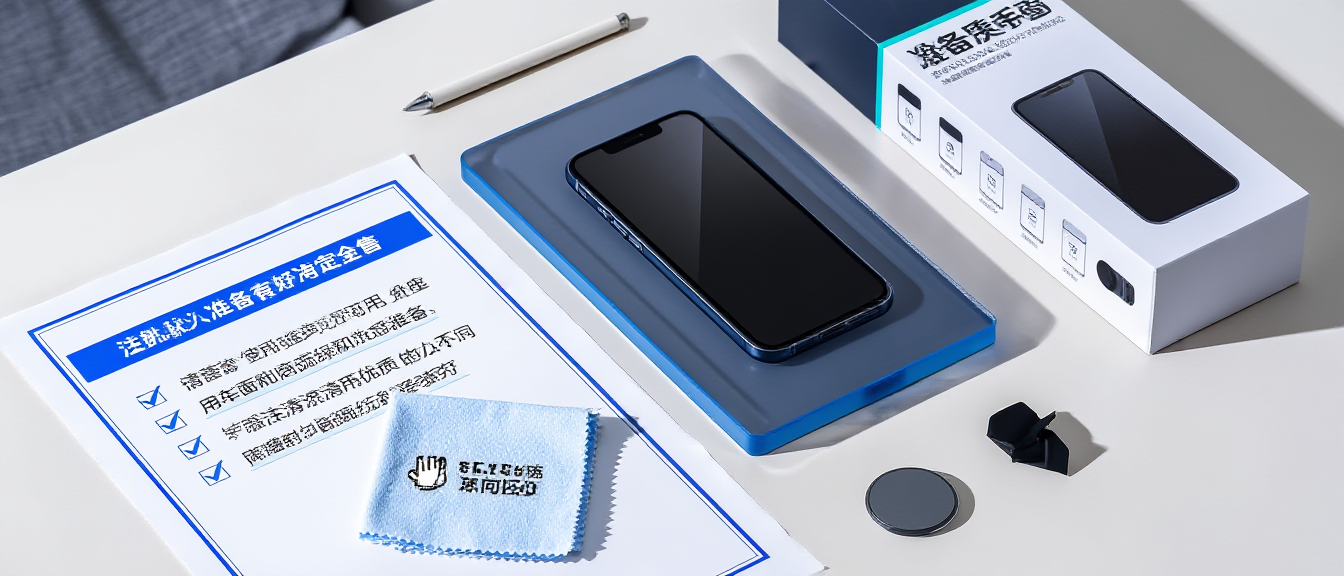
Phone preparation checklist for selling with cleaning supplies and accessories

Prepare phone for selling checklist

How to Prepare Your Phone for Selling: Complete Checklist

There are a number of things to do before selling your iPhone or Samsung Galaxy. All of them are important, to safeguard your personal information, get the highest price possible, and avoid any unpleasant situations.

Depending on what you miss out on doing, you may irreversibly delete all your pictures, allow others to log into your financial accounts, be undercharged due to defects you were unaware of, or get calls from disgruntled buyers.

Last updated: November 2026

⚠️ Warning: All phones will stay locked to your Apple ID or Google account if you factory reset them without signing out first, preventing anyone else from using them. So make sure you follow the correct sequence as outlined below.

Step 1: Back Up Everything

Of course you would want all your pictures, WhatsApp messages and other files to back up onto your PC or the cloud… right? Too late once you’ve done a factory reset.

Not everything will be automatically backed up to iCloud or Google Drive. There are other things that you need to manually ensure are backed up.

Example: Imagine selling your iPhone and losing all messages that you may have had going back 2 years with your late grandmother on WhatsApp.

What to Do: iPhone: Settings > [Your Name] > iCloud > iCloud Backup > Back Up Now. Wait for “Last successful backup: Today.” Android: Settings > Google > Backup > Back Up Now. WhatsApp (both): WhatsApp > Settings > Chats > Chat Backup > Back Up.

Step 2: Sign Out of All Accounts (CRITICAL)

All phones will have a prompt to enter your Apple ID and password (or Google equivalent) to continue once turned on, after a factory reset. The purchaser of course does not know this information.

This is primarily designed as a security measure to deter thieves, so that the stolen device will be useless without the owner’s ID and password. Hence it will remain locked after any number of factory resets.

Example: Imagine only receiving this call from the purchaser 3 days after buying off you through Carousell. You’d of course be obliged to arrange to meet up to sign out of your account.

What to Do: iPhone: Settings > [Your Name] > Sign Out (enter Apple ID password). Android: Settings > Accounts > Remove each Google/Samsung account. This MUST be done BEFORE factory reset.

Step 3: Remove SIM & Memory Card

Your SIM and micro-SD cards may still be inserted! Your mobile number and any pictures on the micro-SD card would then go off with the phone.

It’s easier than you’d think to overlook this, since neither can be seen if the tray has been pushed back in.

Example: The purchaser of your Samsung Galaxy calls you a few days after purchase, to inform you there is a SIM (your number!) in the phone. Imagine all the things they may be able to do.

What to Do: Use the SIM ejector tool (or paperclip) to pop out the tray. Physically check BOTH sides of the tray—some phones have dual SIM + microSD slots.

Step 4: Check IMEI Status

Various shops will turn down your phone for sale if its serial number (IMEI) is on a blacklist database.

Any phone that has been reported lost or stolen, or that has outstanding payments, will be blacklisted. Such phones would therefore not work with any local operator and are virtually worthless.

Example: Imagine buying an iPhone second-hand, only to find out all the various shops will not buy it off you, as it has since been declared stolen by its owner (probably for insurance claims).

What to Do: Dial *#06# to get your IMEI number. Check it at imei.info or imeicheck.com. Must show “Clean” status. If blacklisted, you can only sell for parts (very low value).

Step 5: Check Battery Health

Perhaps you’ve checked and your battery seems to be holding up well. Unfortunately the shop may find out otherwise when checking your phone.

As you can imagine, the condition of your battery plays a big part in determining the value of your phone. Any figure below 80% will attract a 15-25% penalty. All the shops will check this.

Example: You may have looked up other selling prices online and quoted the shop accordingly for e.g. an iPhone 15 Pro. Only to be offered much lower once they check your battery health, at 70%. What a waste of time!

What to Do: iPhone: Settings > Battery > Battery Health. Check Maximum Capacity. Android: Download AccuBattery app, charge to 100%, check Health %. Know this BEFORE quoting prices.

Step 6: Gather Original Accessories

If you don’t have all accessories, particularly the original box, to go with it, expect to receive about 10-20% less.

It’s always desirable for shops to have these, both so it appears to have been well taken care of, and as an added incentive for their own buyers.

Example: Same make, model, size and condition, the difference in selling price is quite significant.

What to Do: Include: Original box, charging cable, charging brick (if originally included), earphones (older iPhones), SIM ejector tool, warranty card. Don’t have the box? You’ll still get fair value, just slightly less.

Step 7: Clean Your Phone

Fingerprints all over, grime around the charging port and on the lenses… you get the idea.

Naturally no one would want to part with money for what appears to be quite a run-down phone.

Example: Despite being in good working order, imagine being low-balled simply due to all the grease marks, and build-up around the port.

What to Do: Screen/back: microfiber cloth + tiny bit of isopropyl alcohol. Camera lens: gentle wipe. Charging port: wooden toothpick to remove lint. Speaker grills: soft brush. Takes 5 minutes, increases value.

Step 8: Factory Reset (FINAL STEP)

The usual mistake: performing any combination of the above in the wrong order, particularly factory resetting.

As you can see, there is a lot to lose if you don’t follow the proper sequence of steps. It goes without saying that this should only be performed as the final step.

Example: Deleting all your valuable information, or locking the phone to your ID and password as described previously.

What to Do: Only after completing ALL previous steps: iPhone: Settings > General > Transfer or Reset iPhone > Erase All Content and Settings. Android: Settings > System > Reset > Factory Data Reset. Wait for “Hello” screen.

Quick Checklist Summary

  • [ ] Back up to iCloud/Google Drive
  • [ ] Back up WhatsApp separately
  • [ ] Sign out of Apple ID / Google Account
  • [ ] Remove SIM card and memory card
  • [ ] Unpair smartwatches (if any)
  • [ ] Check IMEI status (must be clean)
  • [ ] Check battery health
  • [ ] Gather original box and accessories
  • [ ] Clean phone physically
  • [ ] Factory reset (LAST STEP)

Ready to Sell? Get Instant Cash

Now that your phone is properly prepared, sell it at Certified Phone Repairs SG:

  • Instant quote: WhatsApp +65 9678 0203
  • Fair market prices (90-95% of Carousell rates)
  • Cash in 15-20 minutes
  • 4 locations: Ang Mo Kio, Bugis, WestGate, Parkway Parade
  • We buy ANY condition (even cracked screens)

Open Daily: 11:00 AM – 9:00 PM

Sell Your Phone in Singapore: Complete Guide & Best Prices 2026

Smartphones with price tags and money for selling guide

Sell your phone Singapore guide

Sell Your Phone in Singapore: Complete Guide & Best Prices 2026

Sell us your iPhone or most Samsung models at high prices. Get an instant quote and be paid all in one visit.

If you’ve recently bought a new phone, or just want to get rid of one or more older phones, read on to find out how to maximize the selling price.

Last updated: November 2026

💡 Quick Tip: As a rule of thumb, most iPhones will be worth around 60% to 85% after 12 months, and top-end Samsungs around 40% to 60%. Check current iPhone prices.

Why Sell Your Phone to Certified Phone Repairs SG?

We typically quote close to 90% to 95% of what you would get on Carousell. All within about 15 to 20 minutes at any of our outlets, so completely safe from scams. Of course we will also quote for badly damaged phones such as a cracked display or poor battery life. There are 4 outlets conveniently located around the island: AMK, Bugis, WestGate and Parkway Parade. All phones will of course have all data securely erased.

Current Buy-Back Prices

iPhone Prices (Excellent Condition)

Model Price Range
iPhone 16 Pro Max $1,900 – $2,350
iPhone 15 Pro Max $1,450 – $1,900
iPhone 14 Pro Max $1,150 – $1,550
iPhone 13 $500 – $700

Detailed pricing by storage: iPhone price guide

Samsung Prices (Excellent Condition)

Model Price Range
Galaxy S24 Ultra $1,250 – $1,550
Galaxy Z Fold 6 $1,600 – $1,900
Galaxy S23 Ultra $950 – $1,200
Galaxy Z Flip 5 $700 – $800

Foldables and more models: Samsung price guide

Shop vs Selling Privately

Of course you can always try selling privately via Carousell, FB groups, and so on. Expect several days of meeting people around town to show them your phone, negotiating with them and risking being scammed. It would probably take you at least 10 hours altogether to make another $100 to $200.

There are many costs involved, such as travelling around town, spending time negotiating with people offering you half the price, chances of receiving fake $100 notes or PayNow ‘proofs’, and general security risks.

Example: If you wanted to sell your iPhone 15 Pro at around $1,400 via Carousell, you may after lengthy negotiations and several unsuccessful attempts to meet others, manage to sell at around $1,300 after about 12 hours. This works out to only about $8 to $17 an hour!

How to sell to us

  1. WhatsApp +65 9678 0203 with phone model, storage, condition
  2. Visit any outlet (Ang Mo Kio, Bugis, WestGate, Parkway Parade)
  3. Get quoted, accept, walk out with cash in 15-20 minutes

What Affects Your Phone’s Value?

Condition

  • Excellent: No scratches, 85%+ battery = 100% price
  • Good: Minor body scratches, 80-84% battery = 85-90% price
  • Fair: Screen scratches, 75-79% battery = 60-75% price
  • Poor: Cracked screen/back, below 75% battery = 40-60% price

Common Deductions

  • Cracked screen: -$100 to -$350 (depending on model)
  • Battery below 80%: -10% to -20%
  • No original box: -5% to -10%
  • Water damage: -50% or not accepted
  • Blacklisted IMEI: Cannot sell

Before You Sell

  • Back up to iCloud/Google Drive
  • Sign out of Apple ID / Google Account
  • Remove SIM and memory card
  • Check IMEI status (dial *#06#)
  • Check battery health
  • Gather original box and accessories
  • Clean phone physically
  • Factory reset (optional—we can do it)

Step-by-step: how to prepare your phone for selling

Our Locations

Ang Mo Kio (North)

Blk 703 Ang Mo Kio Ave 8, #01-2533
Near McDonald’s
Tel: +65 9678 0203

Bugis (Central)

Blk 269 Queen Street, #02-225
Tel: +65 9678 0203

WestGate (West)

#03-K02 (Outside Singtel)
Tel: +65 9678 0203

Open Daily: 11:00 AM – 9:00 PM

Ready to Sell Your Phone?

📱 WhatsApp: +65 9678 0203

🏪 Walk-in: any of our outlets, 15-20 minutes from quote to cash

So why not cash in all your unwanted phones now?

Top 10 Phone Repair Mistakes People Make (And How to Avoid Them)

Top 10 phone repair mistakes to avoid Singapore
Repair Guide · 7 min read · Updated April 2026

Top 10 Phone Repair Mistakes People Make — And How to Avoid Them

We see thousands of phones come through our shops. Many arrive in worse condition than they needed to be — because well-meaning owners made avoidable mistakes. Here’s what to avoid.

1. Waiting Too Long to Get Repairs

You crack your screen but think “I’ll wait until it gets worse.” Small problems become big, expensive ones.

  • Small screen cracks spread across the entire display
  • Singapore’s humidity causes moisture to seep through cracks and damage internals
  • Degraded batteries can swell — which is a safety risk
The rule

Get repairs done as soon as issues appear. A crack that takes 30 minutes and costs $80 to fix today could become a $300 display replacement next month.

2. DIY Repairs Without Proper Tools or Experience

You watch a YouTube video and order cheap parts from Shopee. What could go wrong?

  • Modern phones have delicate flex cables that tear with one wrong move
  • Face ID and Touch ID sensors are cryptographically paired to your phone — damage them and they’re permanently disabled, with no fix available
  • Adhesives require specific temperatures and techniques
  • Cheap replacement parts often fail within weeks
Real example

A customer bought an aftermarket iPhone screen online and damaged the Face ID connector during DIY installation. The repair that would have cost $150 became a $500 job — with Face ID permanently disabled.

3. Using a Hair Dryer on a Water-Damaged Phone

Your phone gets wet. Someone says “dry it with a hair dryer!” This is one of the worst things you can do.

  • Heat melts internal adhesives and damages components
  • Forced hot air pushes water deeper into the device
  • Can cause the battery to swell

What to do instead: Power off immediately. Don’t charge it. Don’t try to turn it on. Bring it to a repair shop as soon as possible for professional cleaning.

4. Choosing a Repair Shop Based on Price Alone

You see “$50 iPhone screen repair!” and assume a deal. Suspiciously cheap repairs usually come with poor-quality parts and no real warranty.

  • Cheap screens often have: dead pixels within weeks, dim display, ghost touches, washed-out colours
  • No warranty or a “90-day warranty” that’s never honoured
  • Inexperienced technicians who damage other components during repair
What to ask

Before any repair: “What grade of parts do you use?” and “What exactly does your warranty cover?” A shop that can’t answer clearly is a shop to avoid.

5. Not Backing Up Before Repair

You drop off your phone without backing up. During repair, something unexpected happens and data is lost.

Screen and battery repairs rarely affect data. But motherboard repairs carry real risk. Photos of family, business documents, years of messages — these are irreplaceable.

iPhone: Settings → [Your Name] → iCloud → iCloud Backup → Back Up Now.
Android: Settings → Google → Backup → Back up now. Takes 5 minutes and is always worth doing.

6. Continuing to Use a Visibly Damaged Phone

A cracked screen with tape over it. A battery that’s clearly swollen. These aren’t just cosmetic issues.

  • Cracked screens cut fingers and let moisture into the internals
  • Swollen batteries can catch fire — this is a genuine safety risk, not a remote possibility
  • Broken charging ports can cause electrical shorts when forcing a cable in

7. Trusting the Rice Method for Water Damage

Rice absorbs moisture from the air. It does not absorb water from inside a phone. The rice myth wastes 24–48 critical hours while corrosion progresses inside your device.

By the time you give up on rice and bring the phone in, corrosion has had two full days to spread across the logic board. Water damage treated within hours has a far higher success rate than water damage treated after a day of sitting in rice.

8. Not Asking About Warranty Before the Repair

You get your screen repaired. Two weeks later it develops issues. The shop says “sorry, no warranty.”

Always confirm before paying: how many days warranty, what’s covered (parts and workmanship), and what voids it. Get a receipt with warranty terms written on it. Any reputable shop will have no problem providing this.

9. Ignoring a Failing Battery

Battery drains fast, phone overheats, shuts off randomly. You think “it’s just old” and carry a power bank everywhere.

A degraded battery isn’t just inconvenient — iOS and Android actively throttle CPU speed to prevent unexpected shutdowns caused by weak batteries. Your phone feels slow because of the battery, not because of the processor. A battery replacement restores both battery life and performance.

10. Accepting Repairs Without Understanding What’s Wrong

You bring your phone in for a screen repair. The technician says you also need a charging port replacement and motherboard cleaning for $300 more. You agree without questioning.

  • Ask: “Can you show me what’s wrong?”
  • Ask: “What happens if I don’t fix this other issue now?”
  • Ask: “Can I just do the screen first?”

A trustworthy shop will give clear answers. If a shop pressures you to agree to extra repairs on the spot without explanation, get a second opinion.

Red Flags at Repair Shops

  • No upfront price estimate — quote only given after they “open it up”
  • Needs 5–7 days for repairs that take 60 minutes everywhere else
  • No warranty offered
  • Only accepts cash, no receipt
  • Significantly cheaper than all other shops
  • Pressures you to agree to additional repairs immediately

Need an honest repair?

Free diagnostics, Grade A parts, 90-day warranty. We tell you exactly what’s wrong before any work starts.
Westgate · AMK Central · Bugis Village · Parkway Parade · 11am–9pm daily
💬 WhatsApp +65 9678 0203

Is iPhone Repair Worth It? Complete Cost vs Replace Guide Singapore 2026

Broken iPhone with calculator showing repair costs

Broken screen, dead battery, doesn’t charge, and so on. At some point you’ll be wondering whether it is more worthwhile to get it fixed or replace it altogether.

With the price of an iPhone these days, this can be quite a dilemma. For example, the iPhone 15 Pro Max retails at $2,199. Of course it can cost quite a bit to repair your iPhone too. We hope to be able to guide you on what may be best for you.

The Quick Decision Framework

✅ Repair Makes Sense When:

  • Phone is less than 3 years old
  • Single issue only (just battery OR just screen)
  • Repair cost under 30% of current phone value
  • Everything else works perfectly
  • You’re happy with current phone performance

❌ Replace Makes Sense When:

  • Phone is 4+ years old
  • Multiple issues (battery + screen + other problems)
  • Repair costs exceed 50% of phone’s current value
  • Performance is sluggish even before the issue
  • Model no longer gets iOS updates

Common iPhone Repairs: Costs vs Value

Screen Repair

Apple Official: $258-$598 depending on model
Third-Party: $150-400 for most models

Worth repairing? In general, yes if under 4 years old. This will generally be the cheapest type of repair to do on most models. Screen repair info

Battery Replacement

Apple Official: $119
Third-Party: $60-120

Worth repairing? Almost always. Your iPhone will most likely work as well as new once this is done. Battery replacement info

Charging Port Repair

Third-Party: $60-100

Worth repairing? Almost always, this would be fairly inexpensive.

Motherboard/Logic Board Repair

Third-Party: $200-500+ depending on issue

Worth repairing? This would largely depend on the age of your iPhone and extent of damage. It pays to have it checked for free.

iPhone Model-Specific Repair Decisions

iPhone 15 / 15 Pro (2023)

  • Current value: $1,400-2,200
  • Typical repairs: Screen $300-500, Battery $80-120
  • Verdict: Definitely repair.

iPhone 14 / 14 Pro (2022)

  • Current value: $1,000-1,800
  • Typical repairs: Screen $280-450, Battery $70-100
  • Verdict: There is still plenty of usable life to gain from repairing it.

iPhone 13 / 13 Pro (2021)

  • Current value: $700-1,400
  • Typical repairs: Screen $250-380, Battery $60-90
  • Verdict: Likely worth repairing, unless there are multiple issues.

iPhone 12 / 12 Pro (2020)

  • Current value: $500-1,000
  • Typical repairs: Screen $200-320, Battery $60-80
  • Verdict: Depends. Probably, unless you want to upgrade.

iPhone 11 / 11 Pro (2019)

  • Current value: $300-600
  • Typical repairs: Screen $150-250, Battery $60-80
  • Verdict: Definitely replace the battery. Possibly repair the screen. Probably not worthwhile to repair the motherboard.

iPhone XS / XR / X (2017-2018)

  • Current value: $200-400
  • Typical repairs: Screen $150-220, Battery $50-70
  • Verdict: Might be worth replacing the battery. Probably not to repair the screen, you may be better off upgrading.

iPhone 8 and Older (2017 and before)

  • Current value: $100-250
  • Verdict: Probably best to start saving to replace these.

The Real Cost of “Just Buying New”

  • iPhone 15 Pro Max: $2,199
  • iPhone 15 Pro: $1,849
  • iPhone 15: $1,299
  • iPhone 14: $1,149
  • iPhone SE: $719

An iPhone SE starts from $719, which would be comparable to the price of a pre-owned, very good condition iPhone 13. There is little point spending over $1,299 on a brand new iPhone 15, when you could have your current iPhone 13 screen replaced for around $150, and continue using it for another 2 or so years.

So, of course, if there are features you desire or require, then another story.

Should You Trade In vs Repair?

Most vendors allow you to trade in your old phone towards a new one. However, as you can imagine, this amount will be significantly less if there is damage.

Example: iPhone 13 Pro Trade-In Value

  • Perfect condition: $700
  • Cracked screen: $200-300
  • Battery issues: $150-250
  • Multiple issues: $100 or rejected

So as you can see, repairing the screen at a cost of $250 can allow you to trade in for about $700, a difference of $200.

Other Benefits of Repairing

As well as the obvious monetary benefits, there are a few others to consider.

  1. Keep your data/setup: No transfer needed
  2. Familiar with your phone: Don’t need to relearn new interface
  3. Environmental: Less e-waste
  4. No setup hassle: Avoid hours of restoring from backup
  5. Keep accessories: Cases, screen protectors, MagSafe accessories all still fit

When You Should Upgrade Instead

However, there are a number of reasons why you may want to replace your iPhone.

  • Your iPhone is 5+ years old (iPhone 8 or older in 2026)
  • Multiple expensive repairs needed simultaneously (screen + battery + charging port = $400+)
  • Phone runs slowly even after repair
  • You’ve already had the same part replaced twice
  • Repair cost exceeds 50% of phone’s current value
  • You genuinely need/want new features (better camera, 5G, etc.)

The Middle Ground: Certified Used/Refurbished

Alternatively, you could look at purchasing pre-owned.

  • iPhone 14 Pro: $1,200-1,400 vs $1,849 new
  • iPhone 13: $600-800 vs $1,149 new
  • iPhone 12: $500-650 vs discontinued new

Final Decision Calculator

Repair Cost ÷ Current Phone Value = Decision Factor

  • Under 30%: Repair
  • 30-50%: Repair if you like your current phone
  • Over 50%: Consider upgrading

Example: iPhone 13 screen repair costs $250. Phone worth $800. That’s 31%—borderline but still reasonable to repair.

Conclusion

As you can see, for the majority of cases, if your iPhone was released within the past 4 years or so, it would be worthwhile repairing. The main instances to consider replacing are if there are several areas of damage, all costly to repair, or of course if you simply wish to upgrade.

Not Sure If Repair Is Worth It?

Come in for a free check-up to see what is wrong and our recommendation.

Screen Repair Info📱 WhatsApp: 9678 0203

How to Make Your Phone Battery Last All Day: 15 Proven Tips

Phone battery tips to last all day Singapore
Battery Guide · 6 min read · Updated April 2026

How to Make Your Phone Battery Last All Day — 10 Proven Tips

Battery anxiety is real — especially in Singapore where we use phones for everything from PayNow to Grab to WhatsApp. These tips will get you through a full day without hunting for a charger.

1. Lower Screen Brightness

Your screen is the single biggest battery drain on any phone. Running at 80–100% brightness all day drains 30–40% more battery than needed. Singapore’s bright outdoor conditions make people crank brightness up — then forget to turn it down indoors.

iPhone: Settings → Display & Brightness → Auto-Brightness ON. Set manually to 40–60% indoors.
Android: Settings → Display → Adaptive Brightness ON.

Quick win

Reducing brightness from 100% to 50% can extend your battery life by 20–30% instantly — the single most impactful change you can make.

2. Use Dark Mode (AMOLED/OLED Screens Only)

If you have an OLED screen — iPhone 12 or newer, Samsung S-series, OPPO Reno, Vivo V-series — dark mode saves significant battery. OLED pixels emit their own light: black pixels are completely off and use zero power.

iPhone: Settings → Display & Brightness → Dark.
Android: Settings → Display → Dark Theme.

Note: On LCD screens (iPhone 11 and older, budget Androids), dark mode makes minimal difference to battery life.

3. Turn Off Background App Refresh

Social media, news and shopping apps constantly update in the background even when you’re not using them — draining battery silently all day.

iPhone: Settings → General → Background App Refresh → Off (or per-app). Keep on for WhatsApp, email and Maps. Turn off for Instagram, TikTok, games.
Android: Settings → Apps → Select app → Battery → Restrict background.

4. Limit Location Services

Games and shopping apps don’t need your location. Running location 24/7 for non-essential apps is a constant battery drain.

iPhone: Settings → Privacy → Location Services. Set most apps to “While Using” or “Never.” Keep “Always” only for Maps, Grab and food delivery.
Android: Settings → Location → App permissions.

5. Use Wi-Fi Instead of Mobile Data

Wi-Fi uses significantly less battery than 4G or 5G. At home, the office, cafes — connect to Wi-Fi. This alone can save 10–15% daily battery life.

5G drain

If you have a 5G phone on a 5G plan, switching to 4G-only mode when 5G isn’t needed can noticeably extend battery life — 5G radios consume significantly more power.

6. Singapore-Specific Tips

Singapore’s climate creates unique battery challenges — heat, indoor/outdoor temperature swings, and heavy app usage for payments and transport.

Avoid heat: Never leave your phone in a hot car or direct sunlight. Temperatures above 40°C permanently damage battery cells — a car dashboard in Singapore sun can hit 50°C+.

Close payment apps: After using PayNow, Grab or food delivery apps, close them fully. These apps often keep location and network connections running in the background.

Temperature swings: Going from 35°C outdoors to 20°C air-conditioning stresses batteries. Let your phone adjust gradually rather than placing it directly on aircon vents.

7. Charge Smarter

How you charge has a direct impact on long-term battery health — which affects daily battery life over time.

  • Charge between 20% and 80% — lithium-ion batteries degrade faster when regularly charged to 100% or drained to 0%
  • Turn on Optimised Charging (iPhone) or Adaptive Charging (Android) — this slows charging above 80% when plugged in overnight
  • Avoid wireless charging for daily use — wireless generates more heat than wired, accelerating degradation over time
  • Use a quality charger — cheap non-certified chargers can damage battery health

8. Other Quick Wins

  • Disable Always-On Display — on Samsung and other Android phones, this alone accounts for 10–15% daily drain
  • Turn off Bluetooth when not using — Bluetooth scanning drains battery constantly
  • Use Low Power Mode proactively — on iPhone, turn it on at 50% rather than waiting for the 20% warning
  • Update your apps and OS — updates often fix inefficient battery drain bugs
  • Remove widgets you don’t check hourly — constantly updating widgets drain battery silently

When Tips Aren’t Enough: Replace the Battery

Even with perfect habits, batteries degrade over time. No amount of settings optimisation will restore a battery that has physically degraded. If your phone is more than 18 months old and these tips make minimal difference, the battery itself likely needs replacing.

Signs it’s time: battery health below 80% (iPhone: Settings → Battery → Battery Health), phone dying before end of day despite low usage, or percentage jumping suddenly.

Swollen battery

If your screen or back panel is lifting slightly from the frame, your battery is swollen — a safety issue. Stop charging it and bring it in for replacement immediately.

Battery not lasting? Get it replaced.

30–45 minutes. Grade A battery. 90-day warranty.
Westgate · AMK Central · Bugis Village · Parkway Parade · 11am–9pm daily

💬 WhatsApp +65 9678 0203

Phone Won’t Turn On? 7 Things to Try Before Visiting a Repair Shop

Dead phone black screen - phone won't turn on troubleshooting Singapore
Repair Guide · 6 min read · Updated April 2026

Phone Won’t Turn On? 7 Things to Try Before Visiting a Repair Shop

Before you rush to a repair shop, try these 7 steps. In many cases a “dead” phone can be revived in minutes — for free.

Step 1: Force Charge for 30 Minutes

The most common reason a phone won’t turn on is a completely drained battery. If the battery hits 0%, it may need time to gather enough charge before it can even show the charging indicator.

1
Plug into a wall charger

Not a computer USB port — wall chargers provide more power. Use the original charger if possible.

2
Wait 30 minutes without touching it

Look for a charging indicator — even a brief flash of a battery icon is a good sign.

3
Try the power button

After 30 minutes, press and hold the power button for 10 seconds.

Singapore tip

If your phone got too hot (left in a car or direct sunlight), it may refuse to charge until it cools. Let it sit in an air-conditioned room for 15–20 minutes before charging.

Step 2: Try a Different Charger and Cable

Faulty cables are extremely common. A damaged cable may look fine outside but have broken internal wires that prevent charging.

  • Borrow a friend’s charger of the same type
  • Try multiple wall outlets — sometimes the outlet is the problem
  • Check the cable for fraying, bent connector or loose fit

Step 3: Clean the Charging Port

Lint and dust accumulate in the charging port over time, preventing the cable from making proper contact.

Important

Use a wooden or plastic toothpick only — never metal. Metal objects can short-circuit the pins inside the port and cause permanent damage.

Gently scrape around the inside of the port with a toothpick. Use a flashlight — you may be surprised how much debris is there. Try charging again after cleaning.

Step 4: Force Restart

Phones can freeze so badly they appear completely dead. A force restart reboots the phone without needing the touchscreen.

iPhone 8 and newer (iPhone 11, 12, 13, 14, 15, 16):

Press and release Volume Up → press and release Volume Down → press and hold the Side button until the Apple logo appears (10–20 seconds).

Samsung:

Press and hold Power + Volume Down for 10–20 seconds until the phone restarts.

OPPO, Vivo, Redmi, Xiaomi:

Press and hold the Power button for 10–30 seconds. Some models use Power + Volume Up.

Step 5: Check for Physical Damage

If your phone recently dropped, got wet, or suffered physical damage, the issue may be hardware-related.

  • Water exposure — did it get wet recently? Check for moisture in the SIM tray slot
  • Swollen battery — is the back cover lifting or the phone thicker than usual? This is a safety issue, bring it in immediately
  • Cracked screen — the phone may be on but the screen connection is broken
  • Bent frame — subtle bending from a drop can damage internal connections

Step 6: Let It Cool Down

In Singapore’s heat, phones can shut down as a safety measure when overheated. If the phone was left in a hot car or direct sun:

  • Move to a cool, air-conditioned room
  • Remove the case to help it cool faster
  • Do NOT put it in the fridge — condensation causes water damage
  • Wait 20–30 minutes, then try charging and turning on

Step 7: Boot Into Recovery Mode

If the phone powers on but won’t boot into the OS (stuck on logo), recovery mode may help.

iPhone:

Connect to a computer with iTunes/Finder. Follow the force restart sequence until you see the recovery screen (cable + computer icon). Choose Update first — this keeps your data.

Android:

Power off completely. Hold Power + Volume Up until recovery menu appears. Try Wipe Cache Partition first — this doesn’t delete data. Factory Reset only as a last resort.

When It’s a Hardware Problem

If all 7 steps fail, the issue is likely hardware. Common causes:

  • Dead battery — a failed (not just drained) battery won’t charge at all. Battery replacement takes 30–45 minutes.
  • Faulty charging port — bent pins, broken connector or corrosion means the phone can’t charge.
  • Broken display connection — your phone may actually be on, but the screen isn’t lighting up. You may hear notifications or feel vibrations.
  • Motherboard fault — power management chip or other board-level issue. Requires diagnosis under magnification.
How to tell

If the phone responds to force restart or shows a charging indicator when plugged in — it’s likely software. If completely unresponsive with no charging indicator after trying multiple chargers — it’s likely hardware.

Still not turning on?

Free diagnostics at any outlet — we’ll identify the problem before any work starts.
Westgate · AMK Central · Bugis Village · Parkway Parade · 11am–9pm daily
💬 WhatsApp +65 9678 0203

Phone Screen Cracked? Here’s What You Need to Know Before Getting It Fixed

Cracked phone screen spider web fracture - screen repair Singapore
Screen Repair Guide · 5 min read · Updated April 2026

Phone Screen Cracked? Here’s What You Need to Know Before Getting It Fixed

That sickening sound of your phone hitting concrete. The slow flip to see if the screen survived. Here’s exactly what to do next — and what to watch out for.

What to Do Immediately After Cracking Your Screen

Don’t wait

Cracks spread. Moisture enters through the crack and corrodes the internals. Touch may fail in cracked areas. A small crack that costs $80 to fix today can become a $300+ repair within days.

1
Apply clear tape or a screen protector over the crack

This prevents glass fragments from cutting your finger and slows moisture ingress until you can get it repaired.

2
Back up your data immediately

If touch is failing in areas, back up via iCloud or Google before it gets worse. Settings → [Your Name] → iCloud Backup → Back Up Now.

3
Avoid moisture

Don’t use the phone in rain or bathrooms — moisture entering through the crack can damage the display and logic board.

4
Get it repaired within 24–48 hours

Walk in to any of our 4 outlets — no appointment needed. Free assessment before any work starts.

Is It Just the Glass or Is the Display Broken?

Your screen has two layers — the outer protective glass and the display panel underneath (LCD or AMOLED). Understanding which is damaged changes your repair.

Signs it’s just the outer glass: spider web cracks visible but the image is clear, touch still works normally, no black patches or colour bleed.

Signs the display is broken: black patch spreading from the crack, coloured lines across the screen, half the display is dark, touch unresponsive in certain areas.

Quick test

Turn brightness all the way up and look at the screen in a dark room. If the image is clear and uniform with no dark patches, only the outer glass is cracked — the display is likely intact.

Can You Just Repair the Glass?

On older phones with non-laminated displays, glass-only repair was possible and cheaper. On all modern smartphones from 2019 onwards, the glass and display are fused together — a full assembly replacement is required even if only the glass is visibly cracked.

If a shop quotes you a “glass-only repair” on a modern iPhone or Samsung at a suspiciously low price, ask what exactly they’re replacing. Some shops use non-laminated aftermarket assemblies that result in a visible gap between glass and display, reduced colour accuracy and worse touch response.

Should You Repair or Replace?

A general rule: repair makes sense if the phone is less than 3 years old, everything else works, and the rest of the phone is in good condition. Replace makes more sense if the phone is 4+ years old with multiple issues, or the repair approaches the cost of a newer second-hand device.

Screen repair is almost always the more cost-effective option for phones under 3 years old. The savings vs. buying a replacement are significant, and you keep all your data, apps and settings.

What to Expect at the Shop

  • Free assessment — we check the screen, touch, display and any secondary damage before quoting
  • Fixed price upfront — no surprises, what you’re quoted is what you pay
  • 60–90 minutes repair time — most screen replacements done while you wait
  • Post-repair check — you inspect the repair before paying
  • 90-day warranty — covers any defect in the replacement screen

Common Questions

My screen is cracked but everything still works. Do I need to repair it urgently?

Yes — sooner is better. A working cracked screen has no structural integrity. A second minor drop is far more likely to destroy the display completely. Singapore’s humidity also means moisture can enter through the crack over days, causing internal damage that’s invisible until it’s too late.

Will the repair look exactly like before?

Grade A OLED and LCD replacement panels match the original display spec closely — same resolution, brightness and colour accuracy. In side-by-side comparison the difference is minimal.

Does screen repair affect Face ID or Touch ID?

When done correctly, no. Face ID module and Touch ID sensors are transferred intact from the original screen to the new one. We test both before handing your phone back.

How long does a screen repair take?

60–90 minutes for most models. Walk in to any outlet — no appointment needed.

Walk in for a free screen assessment

We check your screen before any work starts — no commitment required.
Westgate · AMK Central · Bugis Village · Parkway Parade · 11am–9pm daily
💬 WhatsApp +65 9678 0203

5 Signs Your Phone Battery Needs Replacement (And What to Do About It)

Phone battery low warning - signs your battery needs replacement Singapore
Battery Guide · 4 min read · Updated April 2026

5 Signs Your Phone Battery Needs Replacement

Is your phone dying before the end of the day? Here are 5 clear signs your battery needs replacing — and a simple test to confirm it.

Sign 1: Phone Doesn’t Last Through the Day

The most obvious sign. If your phone used to last 12 hours and now struggles to reach 6, the battery has degraded significantly. All lithium-ion batteries lose capacity with every charge cycle — after 300 to 500 cycles (roughly 1 to 2 years of daily charging), most batteries are at 80% capacity or below.

Check your battery health now

iPhone: Settings → Battery → Battery Health & Charging. Below 80% — replace it.
Android: Dial *#*#4636#*#* → Battery Information, or use the AccuBattery app.

Sign 2: Percentage Jumps Suddenly

Your phone shows 40% battery, then without warning drops to 10% or shuts off. This is a classic sign of battery cell degradation — the battery can no longer accurately hold or report its charge level. The battery management system loses the ability to track capacity correctly.

If your phone shuts down before reaching 0%, or the percentage jumps erratically throughout the day, the battery needs replacing.

Sign 3: Phone Gets Unusually Warm

Phones warm up slightly during heavy use — gaming, video calls, charging. But if your phone gets warm during normal activities like browsing or WhatsApp, the battery is struggling to supply power efficiently and generating excess heat as a result.

Consistent warmth during light use is a sign of a degraded battery working harder than it should. In Singapore’s climate, this is also accelerated by ambient heat — a degraded battery in Singapore heat ages faster than in cooler climates.

Sign 4: Phone Charges Very Slowly or Stops at a Percentage

A degraded battery often struggles to accept a full charge. Signs include: charging stops at 80–90% and won’t go higher, charging takes significantly longer than when the phone was new, or the battery percentage moves very slowly despite being plugged in.

These symptoms can also indicate a charging port or cable issue — try a different cable and charger first to rule that out.

Sign 5: The Back Panel or Screen Is Lifting

If the back cover is lifting from the frame, or the screen appears to be pushing outwards slightly, the battery has swollen. This is a physical expansion caused by a chemical reaction inside the battery cell.

Safety issue — act immediately

A swollen battery is not just a performance issue — it’s a safety hazard. Stop using the phone, stop charging it overnight, and bring it in for replacement as soon as possible. Do not apply pressure to the swollen area.

Quick Self-Check

  • Phone battery health below 80% (check in Settings)
  • Phone doesn’t last through a full working day
  • Battery percentage drops suddenly or jumps erratically
  • Phone shuts off before reaching 0%
  • Phone gets warm during normal use
  • Any sign of physical swelling or lifting panels

If two or more of these apply, your battery needs replacing.

Common Questions

Will a new battery make my phone feel faster?

Yes — both iOS and Android throttle CPU speed when battery health is low to prevent unexpected shutdowns. A new battery often restores the phone’s original performance speed, not just battery life.

How long does battery replacement take?

30–45 minutes at any of our 4 outlets. Walk in — no appointment needed.

Is it worth replacing the battery on an older phone?

Generally yes, if the rest of the phone works well. A battery replacement extends the useful life of your device by 1 to 2 years at a fraction of a new phone’s cost.

Get your battery replaced today

30–45 minutes. Grade A battery. 90-day warranty.
Westgate · AMK Central · Bugis Village · Parkway Parade · 11am–9pm daily
💬 WhatsApp +65 9678 0203

Selling Your Old Phone? How to Wipe Data Safely Before You Sell

How to safely wipe phone data before selling Singapore
Data & Privacy Guide · 5 min read · Updated April 2026

How to Wipe Your Phone Data Safely Before You Sell or Repair It

In Singapore, your phone contains your PayNow, SingPass, banking apps, photos and years of messages. Here’s how to wipe it completely and safely — before it leaves your hands.

Why a Normal Factory Reset Isn’t Always Enough

Most people assume a factory reset deletes everything. On modern iPhones and most recent Android phones, a properly performed reset does make data unrecoverable for practical purposes. But there are important steps to take before the reset to make sure it’s truly complete — including unlinking accounts, removing SIM cards, and disabling anti-theft features that would lock the next owner out.

Before anything else: back up

Back up all your data before wiping. Once you factory reset, data recovery is extremely difficult. Make sure your photos, contacts, WhatsApp chats and app data are backed up first.

How to Wipe an iPhone Completely

1
Back up to iCloud or your computer

Settings → [Your Name] → iCloud → iCloud Backup → Back Up Now. Or connect to your Mac/PC and back up via Finder or iTunes.

2
Sign out of iCloud (this disables Activation Lock)

Settings → [Your Name] → Sign Out. This is critical — if you skip this, the next owner cannot use the phone. Enter your Apple ID password when prompted.

3
Remove your SIM card

Use the SIM ejector tool to remove your SIM. Don’t leave your SIM in a phone you’re selling or handing over.

4
Erase all content and settings

Settings → General → Transfer or Reset iPhone → Erase All Content and Settings. The phone will restart and show the setup screen — it’s now clean.

Activation Lock

If you skip signing out of iCloud before erasing, Activation Lock remains active. The next owner will be prompted for your Apple ID and password at setup — and without it, the phone is unusable. Always sign out first.

How to Wipe an Android Phone Completely

1
Back up your data

Settings → Google → Backup → Back up now. Also back up WhatsApp chats separately: WhatsApp → Settings → Chats → Chat Backup.

2
Remove accounts

Settings → Accounts. Remove your Google account and any Samsung/Xiaomi/OPPO accounts. This prevents Factory Reset Protection (FRP) from locking the next user.

3
Remove SIM card

Eject your SIM before handing the phone over.

4
Factory reset

Settings → General Management (Samsung) or System → Reset Options (others) → Factory Data Reset. Confirm and wait for the phone to restart.

Factory Reset Protection (Android)

Similar to iPhone’s Activation Lock, FRP locks the phone to your Google account after a reset if you don’t remove accounts first. Always remove your Google account before resetting — otherwise the next owner cannot set up the phone.

Before Handing Your Phone for Repair

When bringing your phone to a repair shop, a full factory reset is not necessary — and usually not desirable, since you want to test the repair with your data. Instead:

  • Back up first — in case something unexpected happens during repair
  • Disable Touch ID / Face ID if concerned — you can re-enable after the repair
  • Change your passcode temporarily — use a simple 4-digit code for the repair visit, then change it back
  • Remove payment cards from Apple Pay / Google Pay — if you’re concerned, these can be removed in Settings and re-added after
Our policy

We need your passcode to test screen functions (touch, Face ID, sensors) after repair. We do not access your personal apps, photos or messages — we only test the repaired components.

Common Questions

Does factory reset delete everything permanently?

On modern iPhones (with encryption enabled by default), yes — data is encrypted and the key is discarded, making recovery practically impossible. On Android, encryption is also enabled by default on most recent phones, making a factory reset effectively permanent for practical purposes.

What about WhatsApp messages?

WhatsApp chats are stored locally and in your Google/iCloud backup. Back them up before resetting. After you set up your new or wiped phone, you can restore them during WhatsApp setup.

I forgot to sign out of iCloud before resetting. What now?

If you still have the phone: sign in to iCloud on the setup screen using your Apple ID and password, then go through the sign-out process. If you no longer have the phone, sign into icloud.com → Find My → select the device → Erase and Remove from Account.

Questions about repair and data safety?

WhatsApp us before you come in — we’re happy to walk you through exactly what we need and what we don’t touch.
Westgate · AMK Central · Bugis Village · Parkway Parade · 11am–9pm daily
💬 WhatsApp +65 9678 0203